
hi human interface - offline activation
If your hi installation has no internet access, you can activate your license by downloading an "offline activation file" from the system, transferring it (e.g. using a pendrive) to a computer which does have access to the internet and validate it via this page.
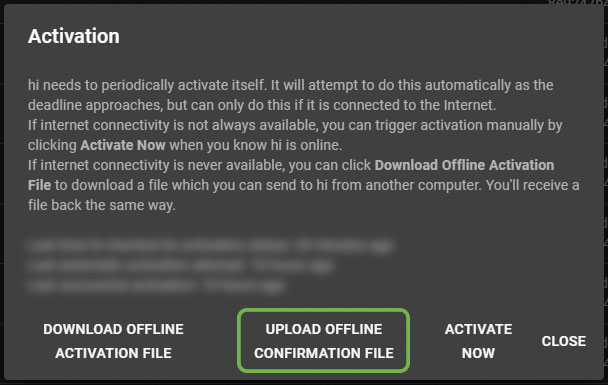
This page will generate an activation response file, which you can transfer back to the hi installation to finish the activation process.
Retrieve Activation Request File From User Interface
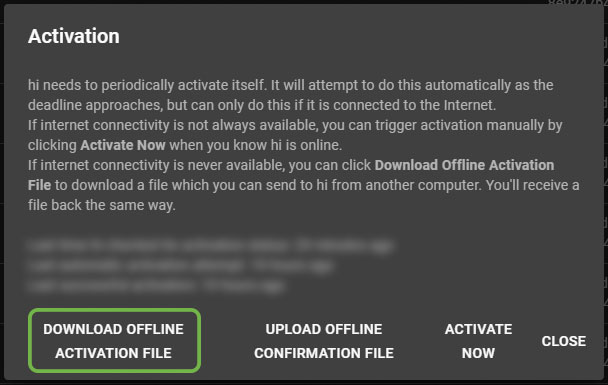
In the hi user interface, navigate to the "Licenses" section and click on "Activation". A window will open, click "Download offline activation file".
Upload the offline activation file
Click "Choose File" and select the file you downloaded from the hi system. Then, click "Activate". Your browser will download the confirmation file.
Getting help
If you have trouble activating hi, please get in touch with the hi team!